Assigning a Teacher to a Class
To assign a teacher to a class in ULearning, follow these steps:
Step 1: Access the Class List
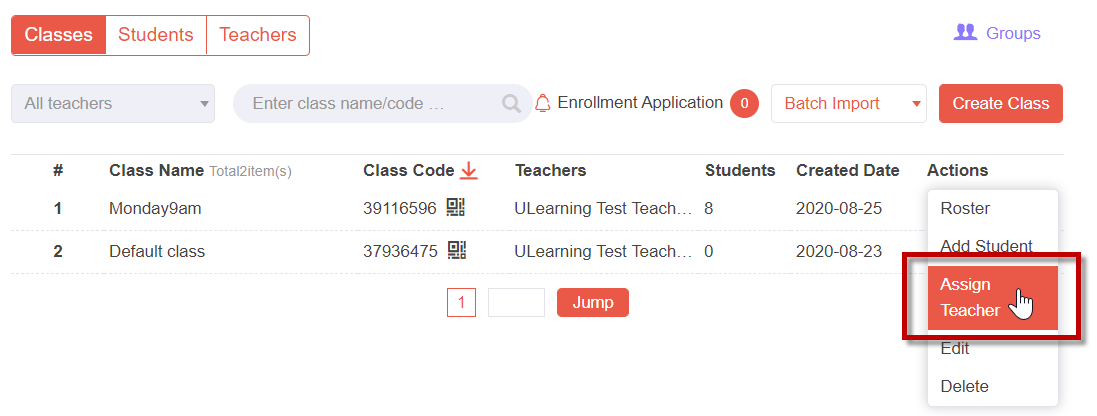
- From the Class List screen, locate the class to which you want to assign a teacher.
- Click the "Actions" dropdown menu at the end of the class row.
- Select the "Assign Teacher" option.
Step 2: Select Teachers to Assign
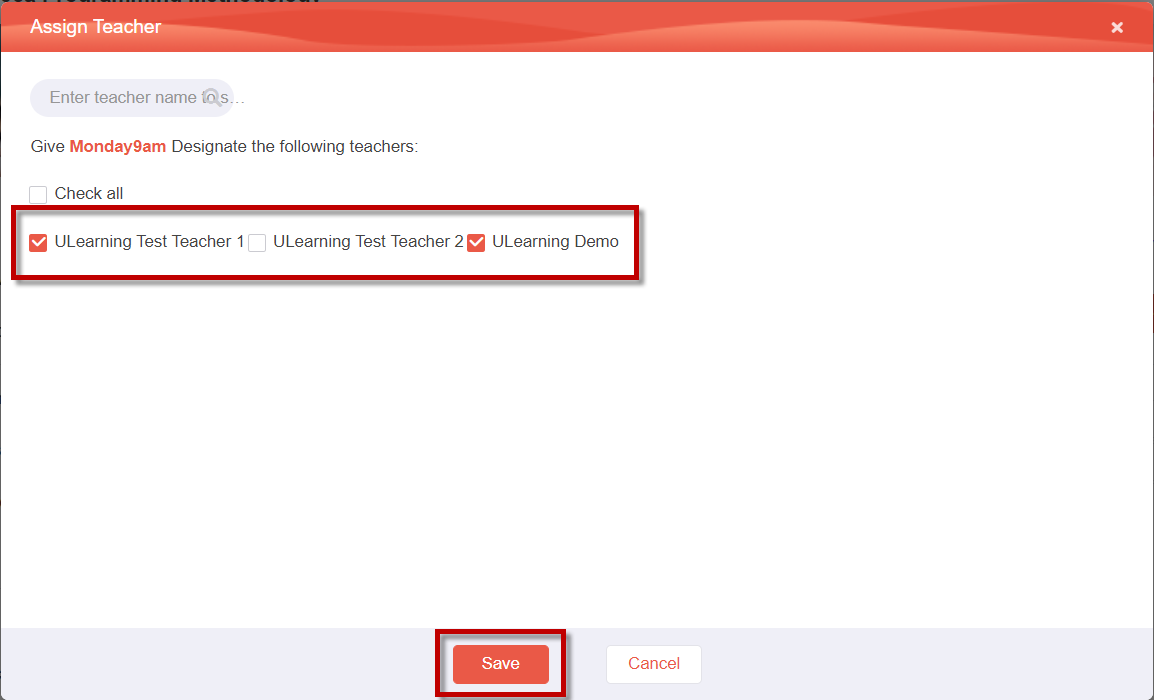
- A popup window titled "Assign Teacher" will appear.
- Select all the teachers you want to assign to the class by checking the checkboxes next to their names.
- Once you have selected the desired teachers, click the "Save" button.
Step 3: View the Assigned Teachers
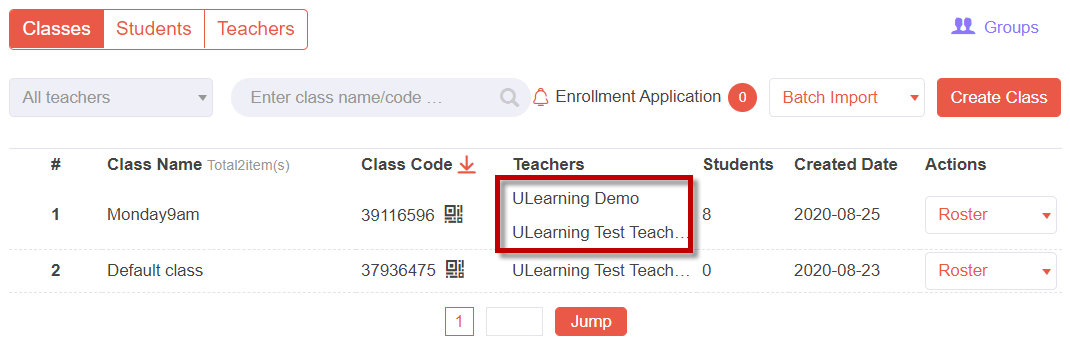
- After saving, you will notice that the assigned teachers are added to the "Teachers" column in the Class List screen.
Note:
- A course or class can be co-taught by two or more teachers. Therefore, you have the flexibility to add multiple teachers to a class, allowing for collaborative teaching.
By following these steps, you can easily assign a teacher or multiple teachers to a class in ULearning. This enables you to distribute teaching responsibilities and provide access to course materials and student information for the assigned teachers. Make sure to select the appropriate teachers for each class and review the assigned teachers to ensure accuracy.