Adding / Updating / Deleting Exam Facilities
To manage exam facilities in ULearning, follow these steps:
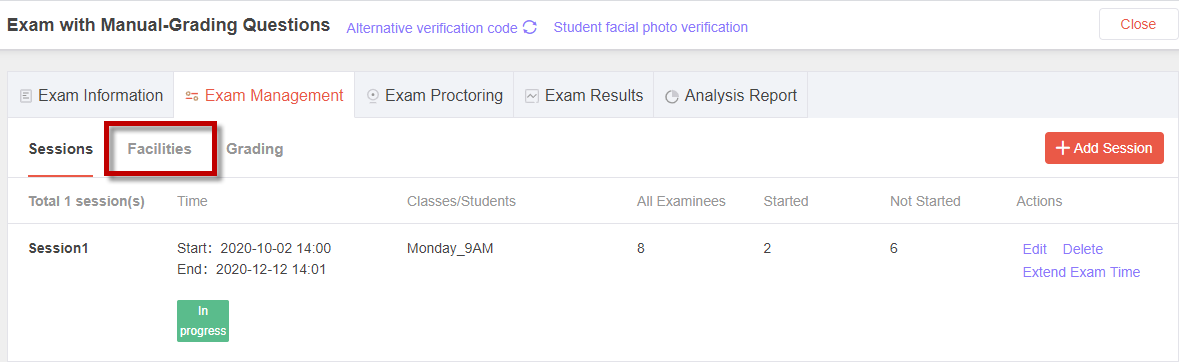
Step 1: Access the Facilities Tab
- On the Exam Management screen, click the "Facilities" tab.
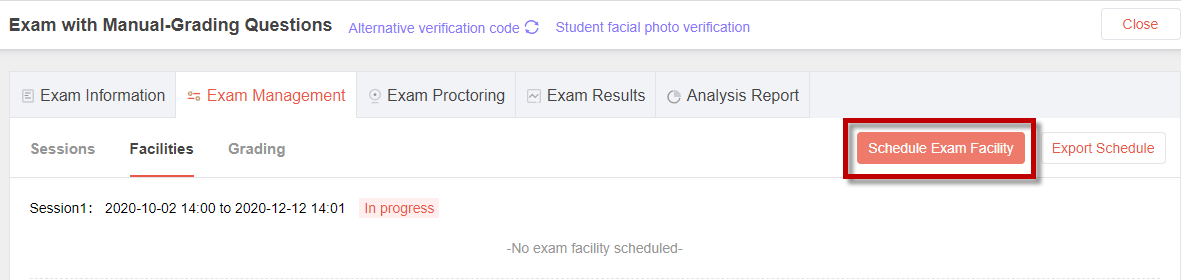
Step 2: Schedule Exam Facility
- Click the "Schedule Exam Facility" button.
Step 3: Adding a New Exam Facility
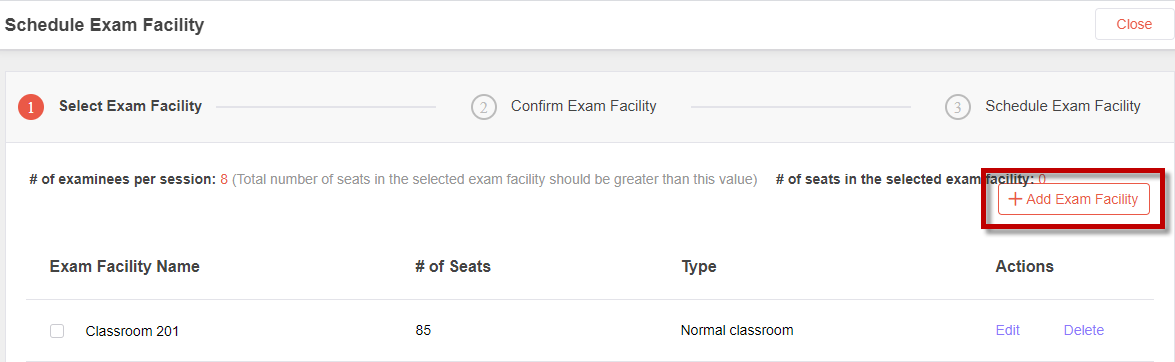
- To add a new exam facility, click the "+ Add Exam Facility" button.
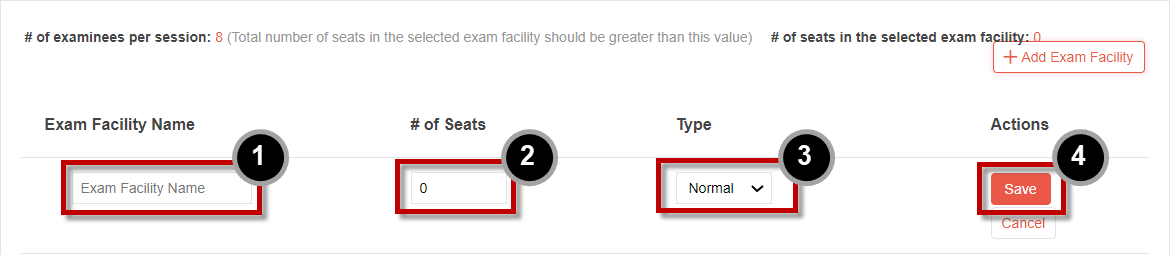
- Enter the exam facility name [1], for example, "Computer Lab 101."
- Enter the number of seats the facility has [2], for example, 50.
- Select the type of exam facility [3]: either "Normal classroom" or "Computer lab."
- Click the "Save" button [4] to add the exam facility.
Step 4: Editing an Exam Facility
-
To make changes to an exam facility, click the "Edit" link.

-
Make the desired changes and then click the "Save" button.

Step 5: Deleting an Exam Facility
-
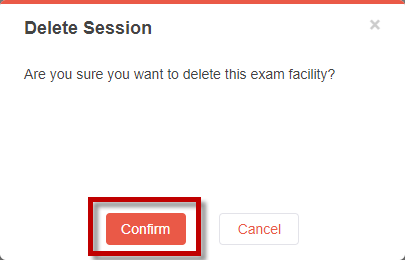
To remove an exam facility from the system, click the "Delete" button.

-
Click the "Confirm" button.
By following these steps, you can add, update, or delete exam facilities in ULearning. This allows you to manage the available facilities for conducting exams effectively.