Assigning / Managing Grading
To assign and manage grading in ULearning, follow these steps:
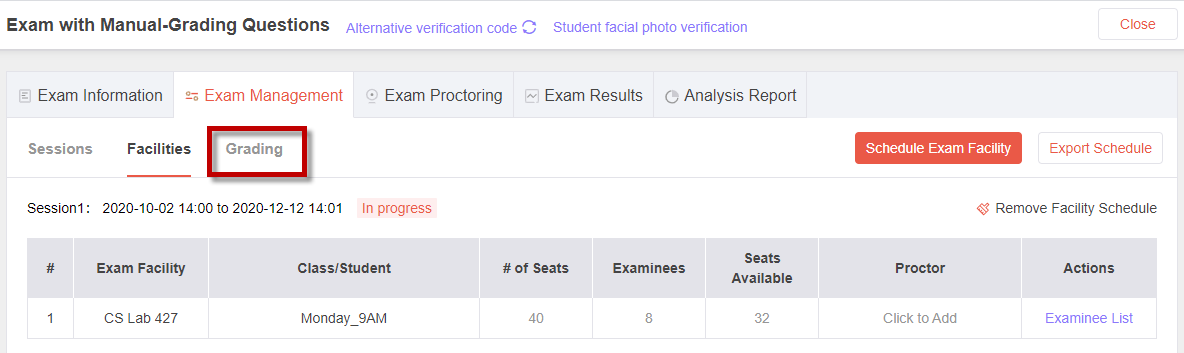
Step 1: Access the Grading Tab
- On the Exam Management screen, click the "Grading" tab.
Step 2: Assigning Grading
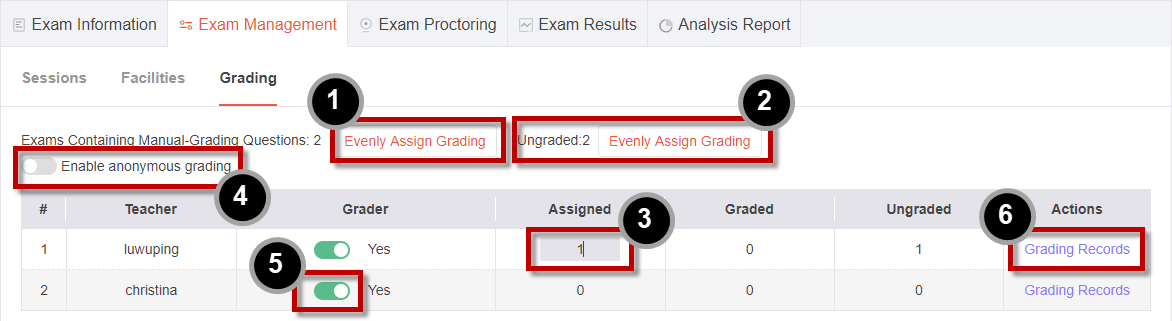
- To evenly assign grading to the graders, click the "Evenly Assign Grading" link [1].
- To evenly assign the ungraded sections to the graders, click the "Evenly Assign Grading" link [2].
- You can also manually assign grading to a grader [3].
- Click the "Enable/Disable" button to enable or disable anonymous grading [4].
- Click the "Enable/Disable" button to include or exclude a grader [5].
- To view a grader's grading records, click the "Grading Records" link [6].
By following these steps, you can assign grading to graders, manage grading settings such as anonymous grading, and view grading records in ULearning. This allows you to effectively distribute the grading workload and monitor the grading progress.